Best Free Photo Culling Software in 2026
Compare free photo culling software including FotoLab, Adobe Bridge, digiKam and Lightroom Classic Assisted Culling for existing subscribers.
Photo culling does not have to involve an additional monthly subscription. Several applications offer ongoing free tools for reviewing, comparing and selecting photographs. Lightroom Classic also includes its own AI-powered culling feature, which is available at no extra cost to photographers with an existing Adobe subscription.
FotoLab provides free AI-assisted culling, with adjustable grouping by scene, people and pose. Adobe Bridge and digiKam are free alternatives for manual selection and photo organisation. The main differences are how the applications help you compare similar photographs, how quickly you can start reviewing a shoot and how selections transfer into your editing workflow.
The best free photo culling software compared
| Software | Free access | Main culling features | Ideal workflow |
|---|---|---|---|
| FotoLab | Free culling, no trial deadline | AI grouping by scene, people and pose; full-size comparison | Selecting photographs before Lightroom editing |
| Lightroom Classic | Included in an existing Adobe subscription | AI-assisted focus and eye assessment, stacking and manual selection | Culling directly within a Lightroom catalogue |
| Adobe Bridge | Free application | Previews, ratings, labels and filtering | Folder-based manual culling |
| digiKam | Free and open source | Ratings, tags, search and photo organisation | Reviewing and maintaining a photo archive |
FotoLab, Adobe Bridge and digiKam provide ongoing free access. Lightroom Classic is a paid application, but existing subscribers can use its culling features without purchasing dedicated culling software.
1. FotoLab: free AI-assisted photo culling
FotoLab groups related photographs so that you can compare multiple variations of a scene side by side. Its AI can group images by visual similarity, the people present and their poses, with adjustable settings for how closely related the photographs should be. This is especially useful for weddings, portraits, events and other shoots where photographers capture several versions of the same moment.
You can open a shoot and begin reviewing photographs immediately, without waiting for the entire gallery to be analysed or an automated cull to finish. Full-size comparison and timeline navigation help you inspect expressions, composition and detail before making your selection. Ratings and selections can be saved for Lightroom or XMP workflows.
Free culling with optional AI editing
Culling is free, and FotoLab’s Light plan also includes 200 personalised AI edits each month and unlimited personal editing models. Mercury is FotoLab’s proprietary AI model, developed and trained from the ground up to understand how photographers edit images and to learn from their previous editing decisions. Both personal model training and AI editing take place locally on your computer, without sending photographs to the cloud or remote data centres.
For photographers who want to automate the editing stage too, Mercury matched all ten tested Lightroom adjustments on 241 of 1,000 unseen photographs in our editing benchmark, compared with 15 for Aftershoot and 17 for Imagen, after all three models trained on the same 10,000 photographs. The result measures agreement with one photographer’s reference settings within defined tolerances.
Explore FotoLab’s free photo culling or download FotoLab.
2. Lightroom Classic: built-in AI Assisted Culling
Lightroom Classic now includes Assisted Culling, which analyses photographs in existing folders and collections and can also be used during import. It is an important option for anyone already paying for Lightroom, particularly photographers who want to keep selection and editing within a single catalogue.
Assisted Culling can identify in-focus subjects, sharp eyes, open eyes, exposure issues, accidental captures and document photographs. Its Auto Stack option groups photographs based on capture time and visual similarity. You can adjust the focus thresholds, review suggested selections and rejects, and apply flags, star ratings or colour labels to groups of images.
How to cull photos in Lightroom Classic
- Open Catalog Settings, select Metadata and enable Assisted Culling.
- In the Library module, select the folder or collection to review.
- Choose the selection and rejection criteria in the Assisted Culling panel.
- Review the suggestions, using Auto Stack to compare related frames where useful.
- Apply flags, ratings or labels to your chosen photographs.
You can then edit the selected images using the Develop module, including its Copy Settings, Paste Settings, Sync and Auto Sync tools for batch editing.
3. Adobe Bridge: free manual photo culling
Adobe Bridge provides previews, star ratings, colour labels, filters and metadata management without a paid Bridge subscription. It is useful for photographers who maintain their own folder structure and want to inspect and label images without importing them into a catalogue.
Bridge is primarily a manual selection and asset management tool, rather than a dedicated AI culling application. It also supports batch renaming and other metadata operations useful when importing or handing off a shoot.
4. digiKam: free, open-source photo management
digiKam combines image review with ratings, tagging, search and broader library management. It is useful when culling is part of organising a long-term photo archive, rather than solely selecting images from the most recent shoot.
The open-source application is available without a commercial subscription and provides tools for managing large collections of photographs.
Are Aftershoot, Narrative and Imagen free for photo culling?
Aftershoot offers a 30-day trial of its AI culling tools, while Imagen includes two introductory culling projects. Neither provides ongoing free AI culling beyond its trial offer.
Narrative also offers a trial. Its current pricing page lists four paid plans, and its support documentation confirms that continued access requires a subscription. Older references to a free Narrative Select plan do not reflect its current offering for new users.
What matters when choosing photo culling software?
Time before you can start selecting photographs
Some AI culling workflows require the photographs to be analysed before presenting their suggested selections. Others, such as FotoLab, allow you to begin reviewing immediately. For large shoots, the time before you can start work is an important part of the overall culling workflow.



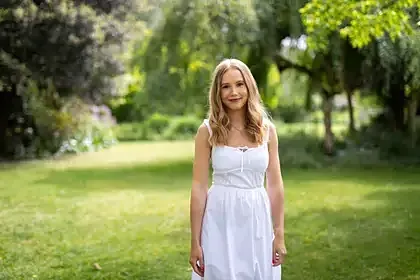
















Grouping related images and comparing expressions
When photographs differ only slightly in pose, expression or framing, it is useful to compare related images together. FotoLab provides adjustable grouping by scene, people and pose, while Lightroom Classic’s Auto Stack groups by time and visual similarity.
Integrating selections into your editing workflow
Your ratings and selections should transfer to your RAW editor without repeating work. Lightroom Classic stores them in its catalogue, while dedicated culling software may pass them through catalogue integration or XMP metadata. Consider whether you also want AI editing and whether that can take place without sending client photographs to the cloud or remote data centres.
Which free photo culling software should you use?
FotoLab is designed for photographers who want fast, AI-assisted comparisons without a culling subscription. It also offers an ongoing free AI editing allowance. Lightroom Classic is an alternative at no additional cost for Adobe subscribers, while Bridge and digiKam provide free manual review and organisation.
Download FotoLab’s free photo culling software to begin selecting photographs without a trial deadline.